Match report as PDF: print and pin up
A match on paper – for the notice board at the sports hall, the team talk or the email to parents and the club board. The app turns the match report into an A4 portrait PDF with tables and charts, ready to print or share.
Step by step
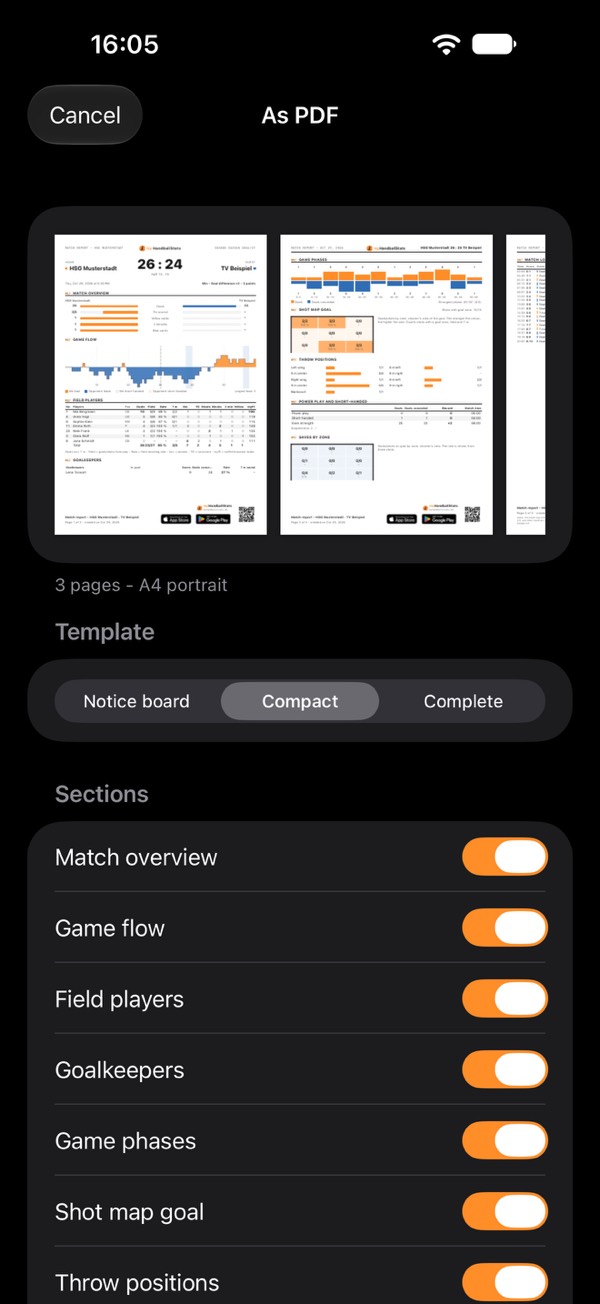
- Open the match report. Swipe a match to the right in the match list, or long-press it and choose Report.
- Choose As PDF. On iPhone and iPad, tap the share icon; you’ll find it below Build an image. On Android it sits right next to it. In the match itself, live or finished, As PDF is in the “…” menu at the top right.
- Pick a template. Notice board, Compact or Complete. At the top you see a preview of the pages, with their count below.
- Set sections and names. Under Sections you switch individual parts off and on again. Under Names in the report you choose Name, First name or just the Number. The app remembers your choice for next time.
- Print or share. Print sends the PDF to a printer, Share opens your device’s share menu: email, messenger, files or cloud.
The three templates
| Template | Scope | Made for |
|---|---|---|
| Notice board | One page with a big score, readable from two metres. Fixed blocks, no sections to switch | Club notice board, display case, changing-room door |
| Compact | The default: all sections, usually two pages, the match log shortened to goals, penalties, timeouts and goalkeeper changes | Team talk, email to parents |
| Complete | Like Compact, plus the full match log and the whole squad, including players without stats | Archive, detailed review |
If you switch templates, its sections go back to the default. After that you switch them one by one.
What’s in the report
The sections always come in the same order and are numbered. Switch one off and the numbers move up.
| Section | Content | |
|---|---|---|
| Match overview | Comparison bars for your team and the opponent | free |
| Game flow | Goal difference over the match with power-play and short-handed phases | Premium |
| Field players | Table per player: goals, shots, rate, 7 m, assists, technical faults, steals, blocks, penalties; with Premium also the myPI | free |
| Goalkeepers | In goal from–to, saves, goals conceded, rate, 7 m saved | free |
| Game phases | Goals and goals conceded per 10 minutes | Premium |
| Shot map goal | Goals and shots per goal zone | Premium |
| Throw positions | Goals and shots per shot position | Premium |
| Power play and short-handed | Goals, goals conceded and playing time in power play, short-handed and at even strength | Premium |
| Saves by zone | The goalkeepers’ save percentage per goal zone | Premium |
| Match log | The events with time and score, shortened or in full | Premium |
The notice board version for the sports hall
The Notice board template always fits on one page. At the top are the teams and the score in large type, below them the blocks:
- Scorers with their goals, 7 m in brackets.
- Goalkeepers with saves and rate.
- Comparison: 7 m, suspensions, yellow cards and timeouts, home against guest.
- Next game, if a later match of the team is in the schedule.
- With Premium also Player of the match (highest myPI) and Score every 10 minutes.
Pages, header and footer
- A4 portrait, in every country. The PDF is not an image: text stays text, can be searched and prints sharply.
- Page 1 carries the large header with team, season, round, date and score. Following pages have a header line with the fixture.
- Charts are never split. Long tables continue on the next page, with the column header and the note (continued).
- Empty columns are dropped. If the opponent’s figures are missing, you see “–”, never a 0.
- The footer is the same on every page: page x of y, the date, logo, myhandballstats.de, a QR code to the app and the App Store and Google Play badges. It also appears in PDFs of Premium users. That’s promotion for the app itself, not third-party advertising.
Names and privacy
- You decide who is named. Name, First name or just the Number, worth considering especially for youth teams. The choice applies to the whole report, including scorers and the match log.
- The PDF is created on your device. It goes nowhere until you print or share it yourself.
- Metadata without names: the file information only contains the title “Match report” and myHandballStats, no player or team names.
What Premium costs – and what doesn't
The PDF is free for everyone, with all three templates and name options. Without Premium it contains Match overview, Field players and Goalkeepers, and on the notice board version scorers, goalkeepers, comparison and next game. With Premium you also get game flow, game phases, shot map, throw positions, power play and short-handed, saves by zone, the match log and the myPI. Without Premium these sections show a crown in the sheet. In the PDF they are then left out entirely, with no placeholder and no advertising.
A section is missing or empty
- Game flow, Game phases, Power play and short-handed need match minutes. Without a running match clock you see a note instead of the chart. Nothing is estimated.
- Shot map goal, Throw positions, Saves by zone are left out if no goal zone or shot position was recorded in the match.
- Only totals? A match with totals entered afterwards also gives a report, just without times.
- Getting started: from an empty phone to your first stats
- Tracking player development: handball stats for youth teams and parents
- What counts as what? Every stat explained
- Goalkeeper and goals conceded
- Game clock, time-outs and match log
- End a game and enter totals
- Live session: record together
- myPI explained: the performance value per player
- Season record: record, form, fair play and 7 metres
- Shot radar: scoring rate per shot position
- Player comparison and shot maps of the top scorers
- Squads and schedules as a table
- Importing official match reports
- Sharing a player as an image
- Backups, switching devices, iCloud
- Free or Premium: what you get without buying
- Tips: quick questions, quick answers
Opens the print dialog – choose “Save as PDF” there. The page is laid out for it.